How to Fix Page Fault in Nonpaged Area on Windows 11
The Page Fault in Nonpaged Area is a common Windows 11 Blue Screen of Death (BSOD) error that indicates the system tried to access memory that should always remain in RAM. This guide explains what causes this error and provides practical, step-by-step fixes you can apply to resolve it.
Troubleshooting Page Fault in Nonpaged Area
Before diving into repairs, understand that this error often relates to faulty drivers, bad RAM, corrupted system files, or misconfigured pagefile settings. Follow the sections below in order for a safe and efficient troubleshooting process.
Quick Overview: Causes and First Checks
- Faulty drivers or recent updates: A bad driver update can cause memory access errors.
- Defective RAM: Physical memory errors often produce this BSOD.
- Corrupted system files: OS file corruption can trigger invalid memory access.
- Pagefile issues: Incorrect or damaged pagefile.sys settings may be involved.
- Malware or incompatible software: Low-level conflicts may lead to crashes.
First checks
- Disconnect any recently added hardware (USB devices, new RAM sticks, etc.).
- Note any recent driver or Windows updates.
- Boot into Safe Mode if the system cannot start normally.
Step-by-step Fixes
1. Run Windows Memory Diagnostic
Bad RAM is a frequent cause. Use Windows Memory Diagnostic to test your memory:
- Press Windows + R, type mdsched.exe, and press Enter.
- Choose to restart and check for problems. Allow the full test to complete and record any errors.
2. Update or Roll Back Drivers
Device drivers, especially graphics or storage drivers, commonly trigger memory faults.
- Open Device Manager (Windows + X → Device Manager).
- Look for devices with a yellow exclamation mark. Right-click → Update driver or Properties → Driver → Roll Back Driver if the error started after an update.
- Download stable drivers from the manufacturer’s website rather than third-party sites.
3. Run System File Checker and DISM
Corrupted system files can be repaired with built-in tools. Open an elevated Command Prompt (right-click Start → Windows Terminal (Admin)) and run:
- sfc /scannow — scans and repairs protected system files.
- After SFC completes, run:
DISM /Online /Cleanup-Image /RestoreHealth — repairs the component store.
4. Check Disk Integrity
Disk errors can cause file corruption affecting memory references. From an elevated command prompt:
- chkdsk C: /f /r — schedule a scan on reboot if required.
5. Verify Pagefile Settings
Mismatched or corrupted pagefile settings can trigger the Page Fault in Nonpaged Area. To check the pagefile:
- Right-click This PC → Properties → Advanced system settings → Performance Settings → Advanced → Virtual memory.
- Let Windows manage the pagefile size automatically, or set a custom size with a recommended minimum equal to your RAM size.
6. Scan for Malware
Run a full antivirus scan using Windows Security or a trusted third-party scanner to rule out malware interfering with system memory.
7. Perform a Clean Boot
A clean boot helps identify third-party software conflicts:
- Press Windows + R, type msconfig, and press Enter.
- Under Services, check Hide all Microsoft services then click Disable all.
- Under Startup, open Task Manager and disable startup items. Restart and check if the BSOD persists.
8. System Restore or Reset
If the error started after a recent change, consider using System Restore to revert to a known good point. If that fails, a Windows Reset (keeping files) can repair deeper issues.
9. Check and Update BIOS/UEFI
Outdated firmware can cause hardware compatibility problems. Visit your PC or motherboard manufacturer’s site for BIOS updates and carefully follow instructions.
When to Check Hardware Physically
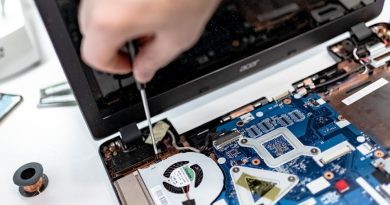
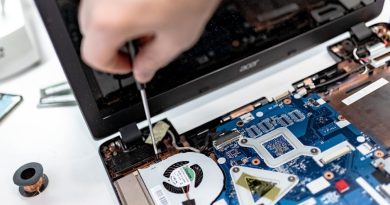
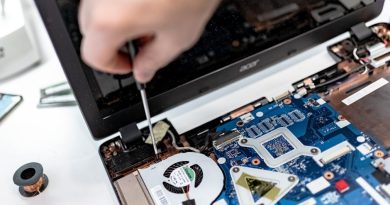
If software approaches don’t resolve the issue, perform physical checks:
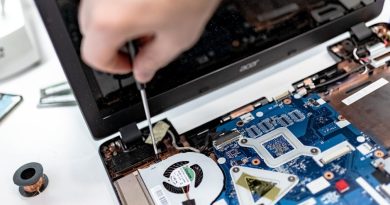
- Reseat RAM modules and test one at a time.
- Test the system with known-good RAM if available.
- Check storage connectors (SATA/NVMe) and cables.
- Remove or swap recently installed expansion cards or peripherals.
Cause vs Action: Quick Reference
| Possible Cause | Recommended Action |
|---|---|
| Faulty RAM | Run Windows Memory Diagnostic; replace failing module |
| Bad driver | Update or roll back drivers from Device Manager or vendor site |
| Corrupt system files | Run sfc /scannow and DISM /RestoreHealth |
| Disk errors | Run chkdsk and check drive health with SMART tools |
| Pagefile misconfiguration | Reset virtual memory to automatic or correct custom size |
FAQ
Q: Is Page Fault in Nonpaged Area dangerous?
A: The error itself is a system crash that can cause data loss if it happens during writes. It’s not “dangerous” like malware, but it signals a stability problem that should be fixed promptly.
Q: Can RAM cleaners or third-party optimizers fix this?
A: No. Third-party RAM optimizers rarely help with low-level faults. Use diagnostics and official drivers instead.
Q: Will reinstalling Windows fix it?
A: Reinstalling Windows often fixes software-related causes (corrupted files or drivers). If the root cause is hardware, the error may persist.
Q: How do I identify which driver caused the crash?
A: Check the minidump files in C:WindowsMinidump with tools like BlueScreenView or Windows Debugging Tools (WinDbg) to identify the driver or module listed in the crash dump.
Conclusion
Resolving the Page Fault in Nonpaged Area on Windows 11 requires methodical troubleshooting: start with memory diagnostics and driver checks, then repair system files, verify pagefile settings, and inspect hardware if needed. Follow the steps above in order, back up your data, and use system restore or reset as a last resort. With careful diagnosis you can restore system stability and prevent future BSODs.