How to Optimize RAM Usage for Heavy Multitasking on PC
When you need to optimize RAM usage for heavy multitasking, the goal is to keep active applications responsive while preventing memory bottlenecks. This guide explains practical steps, OS-level tweaks, monitoring tools, and hardware recommendations so your PC handles many tasks at once without frequent slowdowns.
Understand how RAM affects multitasking
RAM (Random Access Memory) holds active application data so the CPU can access it quickly. If available RAM is exhausted, the operating system uses disk-based virtual memory or swap, which is orders of magnitude slower. The result: stuttering, long app switches, and high disk I/O. Before changing settings or buying hardware, measure baseline memory usage and identify which apps are the biggest consumers.
Quick checklist: How to optimize RAM usage step-by-step
- Monitor current memory usage and swap activity.
- Close or limit background and startup apps.
- Use lighter alternatives for heavy apps when possible.
- Optimize browser usage: limit tabs and extensions.
- Tweak virtual memory / swap settings appropriately.
- Consider enabling OS memory compression or zRAM (Linux).
- Upgrade RAM and ensure dual-channel configuration if needed.
Monitor and identify memory drains
Start with accurate monitoring to identify the biggest memory consumers. Look at:
- Per-process memory use (private working set / RSS).
- Total RAM used vs. free/available memory.
- Swap or pagefile activity and disk I/O spikes.
On Windows, Process Explorer and Resource Monitor offer deeper insights. On Linux, use ps, top, htop and vmstat. On macOS, Activity Monitor provides per-process memory breakdowns and memory pressure graphs.
Software-level optimizations
Software adjustments often provide immediate benefits without cost. Use these practical approaches to optimize RAM usage:
Manage startup and background apps
- Disable unnecessary startup programs. They consume RAM from boot and often remain resident.
- Disable or delay auto-launching services for apps you rarely use.
Trim browser memory usage
Modern browsers are major RAM consumers when many tabs or extensions are active. To reduce memory pressure:
- Use tab-suspender extensions or built-in sleeping tabs.
- Limit extensions to essential ones only.
- Use profiles or separate browser instances for isolated workflows.
Prefer lightweight applications and settings
Choose software with lower memory footprints for routine tasks. For example, use a lighter code editor for quick edits, or configure heavy apps (IDEs, VMs, browsers) to limit background caching and plugin use.
Adjust virtual memory sensibly
Virtual memory (pagefile on Windows, swap on Linux/macOS) prevents crashes when RAM is full but is slow. Recommended practices:
- On Windows, keep the pagefile enabled and let the system manage it unless you have a specific reason to set a size.
- On Linux, tune swappiness (e.g., set between 10-30 for desktop systems) to prefer RAM over swap but still allow swap when needed.
- For SSDs, swap access is faster than HDDs, but frequent swapping still harms responsiveness and SSD longevity.
OS-specific memory features
Modern operating systems include memory-saving features that can help under heavy multitasking.
- Windows: Memory compression reduces swap activity by compressing unused pages in RAM.
- macOS: Intelligent memory management and compressed memory push swap usage less often, but monitor memory pressure.
- Linux: zRAM provides compressed RAM-backed swap to reduce physical swap writes and improve responsiveness.
Hardware and configuration upgrades
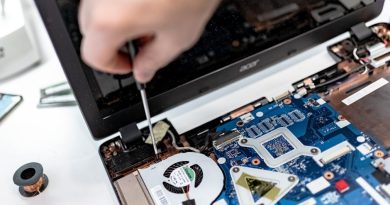
If software optimization isn’t enough, consider hardware changes. Upgrading RAM is the most direct way to improve multitasking capacity.
| Total RAM | Use Case | Multitasking Expectation |
|---|---|---|
| 8 GB | Web browsing, office apps, video calls | Light multitasking; may swap with many tabs or VMs |
| 16 GB | Productivity, moderate multitasking, light content creation | Good for most users; comfortable with several apps and browser tabs |
| 32 GB | Heavy multitasking, large datasets, multiple VMs | Excellent for power users and heavy parallel workloads |
| 64+ GB | Professional video editing, large virtualization and simulation | Necessary for sustained, memory-intensive workloads |
Match RAM speed and channels
Use matched RAM modules to enable dual- or quad-channel mode — this increases bandwidth and can help multi-threaded workloads. Enabling XMP in BIOS/UEFI lets memory run at its rated speed, but ensure stability and BIOS compatibility first.
Consider storage speed too
Fast NVMe SSDs reduce the penalty of swapping compared to HDDs. If you must swap, SSDs are substantially faster, though still slower than RAM. For heavy multitasking, combine adequate RAM with a fast SSD for the best overall responsiveness.
Routine maintenance and best practices
- Keep your OS and drivers updated — memory management improvements often arrive in updates.
- Restart occasionally to clear memory leaks from long-running apps.
- Uninstall or disable software you no longer use to reduce background services and resident memory.
- Use monitoring tools to detect apps with memory leaks; report or replace them when possible.
FAQ
Q: How much RAM do I need for heavy multitasking?
A: For most heavy multitasking scenarios (multiple browser tabs, office apps, light VMs), 16–32 GB is a practical range. For professional workflows — large datasets, many VMs, video editing — 32 GB or more is recommended.
Q: Will closing background apps always improve performance?
A: Usually yes — freeing RAM reduces swap and improves responsiveness. However, some background services are critical; identify and selectively close only nonessential processes.
Q: Can I rely solely on virtual memory instead of upgrading RAM?
A: Virtual memory prevents crashes but is much slower. For occasional spikes, it’s fine. For sustained heavy multitasking, adding RAM is the only way to avoid frequent swapping and maintain smooth performance.
Q: Are RAM cleaning utilities useful?
A: Many so-called RAM cleaners simply force the OS to drop caches and free memory temporarily, which can cause apps to reload data and increase overall I/O. Rely on proper monitoring and targeted fixes rather than automated cleaners.
Conclusion
To optimize RAM usage for heavy multitasking, start with monitoring to locate memory hogs, apply software-level optimizations like trimming startup items and limiting browser tabs, leverage OS features (memory compression, zRAM), and only then consider hardware upgrades such as adding matched RAM modules and a faster SSD. Combining these strategies keeps your PC responsive under heavy loads and reduces the chance that you’ll hit swap-driven slowdowns.
Following these steps will help you optimize RAM usage and maintain smoother multitasking performance day to day.