How to Fix Memory Management BSOD on Windows 11
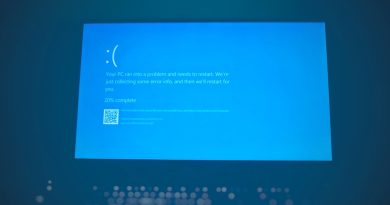
The Memory Management BSOD is one of the blue screen errors that indicates Windows 11 detected a serious issue with memory handling. This guide explains practical steps to diagnose and fix the Memory Management BSOD, from quick software checks to hardware tests.
Understanding the Memory Management BSOD
The Memory Management BSOD typically appears when Windows encounters a problem while allocating or accessing memory. The screen may display error codes such as MEMORY_MANAGEMENT or a stop code like 0x0000001A. Causes range from corrupted system files and bad drivers to failing RAM or misconfigured virtual memory.
Common Causes of Memory Management Errors
- Faulty RAM: Physical memory defects or intermittent failures.
- Driver conflicts: Outdated or corrupted drivers can mismanage memory.
- Corrupted system files: Damaged Windows files may break memory routines.
- Pagefile and virtual memory issues: Incorrect settings or disk problems.
- Overclocking or BIOS issues: Instability from aggressive settings.
- Malware: Rarely, malicious code can trigger memory faults.
Step-by-step fixes for Memory Management BSOD
Work through these steps from easiest to most advanced. After each major step, restart and check whether the Memory Management BSOD returns.
1. Create a backup and note recent changes
Before deep troubleshooting, ensure important files are backed up to an external drive or cloud storage. Also record any recent hardware or driver changes — they’re often the culprit.
2. Boot into Safe Mode
Safe Mode starts Windows with minimal drivers. If the BSOD does not occur in Safe Mode, it often points to a driver or third-party application issue.
- Open Settings > System > Recovery > Advanced startup > Restart now.
- Choose Troubleshoot > Advanced options > Startup Settings > Restart, then select Safe Mode.
3. Update or roll back drivers
Drivers that interact with memory — graphics, chipset, storage controllers — can trigger memory errors.
- Open Device Manager, expand suspect device categories, right-click > Update driver.
- If a recent driver update preceded the BSOD, use Properties > Driver > Roll Back Driver.
4. Run System File Checker and DISM
Corrupted system files can cause memory-related crashes. Run the built-in repair tools:
- Open an elevated Command Prompt (Run as administrator).
- Run: sfc /scannow — wait for completion and follow prompts.
- If issues persist, run: DISM /Online /Cleanup-Image /RestoreHealth and then repeat SFC.
5. Check disk integrity
A failing storage drive or corrupted file system can interfere with the pagefile and produce memory errors. Run:
- chkdsk C: /f /r — schedule at next restart if prompted.
6. Test physical RAM
Testing RAM is crucial if software fixes fail. Two common tools:
- Windows Memory Diagnostic: Type “Windows Memory Diagnostic” and choose “Restart now and check for problems.” The tool will report errors after reboot.
- MemTest86: Create a bootable USB and run several passes (preferably overnight). Any reported errors usually indicate failing RAM sticks or slots.
7. Inspect physical connections and reseat memory
Power off and unplug the PC. Open the case on desktops (or follow manufacturer guidance for laptops) and reseat RAM modules. If you have multiple sticks, test one at a time in different slots to isolate a bad module or slot.
8. Check pagefile settings
Let Windows manage the pagefile by default. Incorrect manual sizes can cause issues.
- Settings > System > About > Advanced system settings > Performance > Advanced > Virtual memory > Change.
- Uncheck custom size, set to “System managed size” or follow recommended values, then restart.
9. Update BIOS/UEFI and firmware
An outdated BIOS can cause memory compatibility problems. Check your motherboard or laptop manufacturer’s website for BIOS/UEFI updates and follow official instructions carefully. Incorrect BIOS updates can render a system unbootable, so proceed with caution.
10. Scan for malware and clean installs
Run a full scan with Windows Defender or a reputable antivirus. If the system remains unstable after hardware and driver checks, consider a repair install of Windows 11 (keeping files) or a clean install as a last resort.
Quick vs. Advanced Fixes
| Fix Type | Action | When to use |
|---|---|---|
| Quick | Update drivers, run SFC, restart | First troubleshooting steps |
| Intermediate | Check pagefile, run chkdsk, boot Safe Mode | If BSOD persists after quick steps |
| Advanced | MemTest86, reseat RAM, BIOS update, clean install | Hardware suspected or repeated crashes |
FAQ
Q: Is Memory Management BSOD always caused by bad RAM?
A: No. Faulty RAM is a common cause, but drivers, corrupted system files, pagefile issues, and even disk problems can also trigger this error. Run software checks before assuming hardware failure.
Q: How long should MemTest86 run?
A: Run at least 3-4 full passes for good confidence; overnight testing (6-8 passes) provides greater assurance on tricky failures.
Q: Can Windows updates cause Memory Management BSOD?
A: Yes. A bad update or driver included with an update can cause instability. If the BSOD started after an update, use System Restore or uninstall the recent update from Settings > Windows Update > Update history.
Q: Will replacing RAM void warranty?
A: Replacing RAM should not void warranty for most desktop systems, but laptop warranties may have restrictions. Check your device warranty terms before opening the case.
Q: Should I disable overclocking if I get this BSOD?
A: Yes. Disable CPU/GPU/memory overclocks and reset BIOS/UEFI to default settings. Overclocking increases instability and can lead to memory errors.
Q: When is a clean Windows install necessary?
A: Use a clean install if software troubleshooting (SFC, DISM, driver updates, malware scans) and hardware checks fail. Always back up data before proceeding.
Conclusion
Resolving the Memory Management BSOD on Windows 11 usually follows a process: verify software integrity (drivers, system files), test storage and virtual memory, then isolate hardware with RAM diagnostics and reseating. Start with backups and easy fixes, work toward advanced hardware checks, and consider professional repair if problems persist. Following these steps will help you restore system stability and minimize data loss.