How to Fix Windows 11 Update Error 0x80070005: 5 Proven Fixes
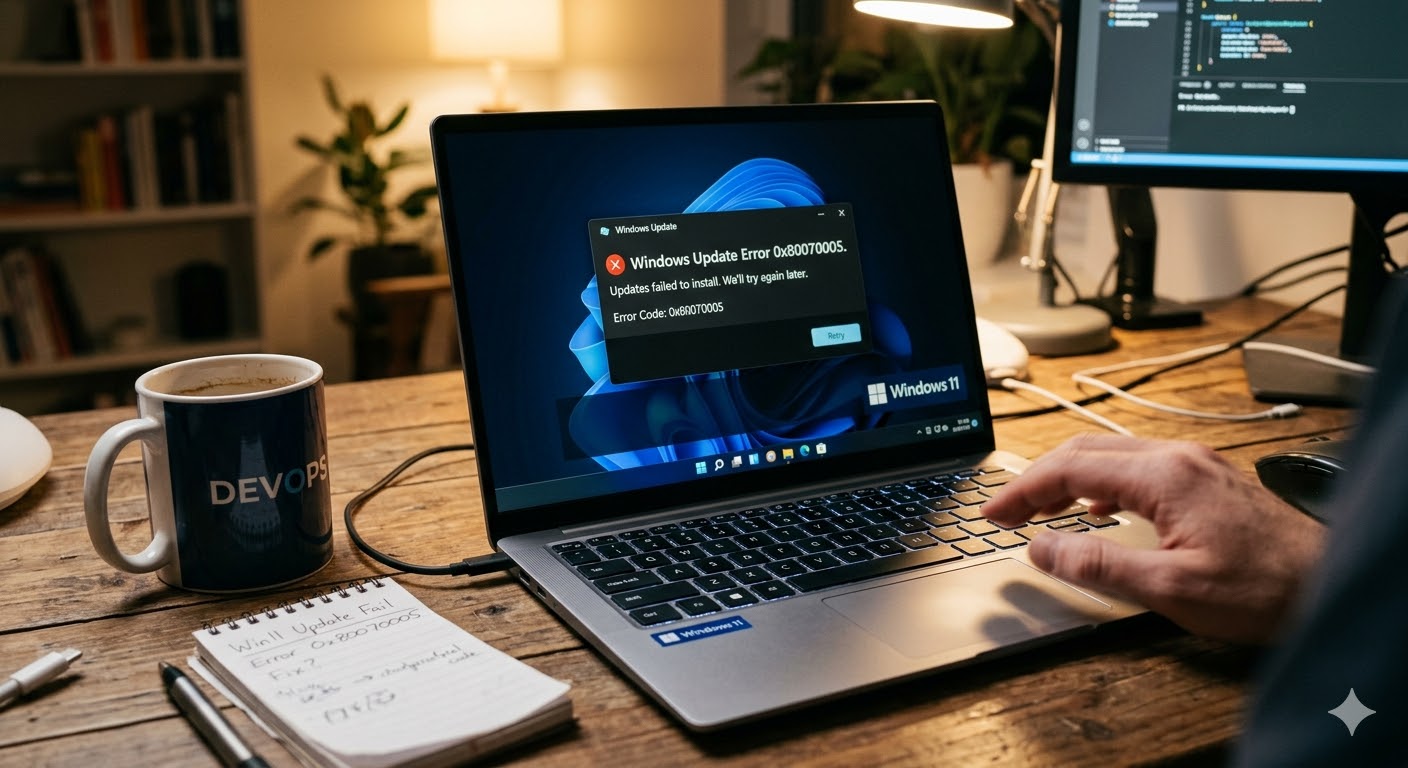
Encountering the Windows 11 Update Error 0x80070005 can be frustrating, especially when you’re trying to keep your system up-to-date with the latest features and security patches. This error typically indicates a permissions issue, preventing the update from proceeding. Fortunately, there are several proven fixes you can try to resolve this issue and get your updates back on track.
1. Run the Windows Update Troubleshooter
The first step in addressing update errors is to use the built-in Windows Update Troubleshooter. This tool can automatically detect and resolve many common issues with Windows updates.
- Open Settings by pressing Win + I.
- Navigate to System > Troubleshoot > Other troubleshooters.
- Find Windows Update and click Run.
- Follow the on-screen instructions and apply any suggested fixes.
2. Check and Modify Permissions
Error 0x80070005 often relates to permission issues. Ensuring the update process has the necessary permissions can resolve the problem.
- Press Win + E to open File Explorer and navigate to C:\Windows\SoftwareDistribution.
- Right-click the SoftwareDistribution folder and select Properties.
- Go to the Security tab and click Edit.
- Ensure that Administrators have Full control.
- Apply the changes and try updating again.
3. Reset Windows Update Components
Corrupted Windows Update components can also be the cause of update errors. Resetting these components can often help.
- Open Command Prompt as an administrator. You can do this by typing cmd in the search bar, right-clicking Command Prompt, and selecting Run as administrator.
- Type the following commands one by one and press Enter after each:
net stop wuauservnet stop cryptSvcnet stop bitsnet stop msiserverren C:\Windows\SoftwareDistribution SoftwareDistribution.oldren C:\Windows\System32\catroot2 catroot2.oldnet start wuauservnet start cryptSvcnet start bitsnet start msiserver
4. Disable Third-Party Antivirus
Sometimes, third-party antivirus software can interfere with the update process. Temporarily disabling your antivirus can help determine if it’s the source of the problem.
- Right-click on your antivirus icon in the system tray and select Disable or Turn off.
- Attempt the update again.
5. Perform a Clean Boot
A clean boot can help eliminate interference from third-party applications and services.
- Press Win + R, type msconfig, and press Enter.
- In the System Configuration window, go to the Services tab, check Hide all Microsoft services, and click Disable all.
- Navigate to the Startup tab and click Open Task Manager.
- Disable all startup items.
- Restart your computer and try the update again.
By following these methods, you should be able to resolve the Windows 11 Update Error 0x80070005. Keeping your system updated is crucial for security and performance, so it’s worth taking the time to fix this issue.