How to Fix Kernel Security Check Failure on Windows 11
The kernel security check failure is a common blue screen error on Windows 11 that can interrupt work and signal hardware or software issues. This guide walks you through practical checks and step-by-step fixes to resolve the error safely and efficiently.
What is the kernel security check failure and why it happens
The kernel security check failure (often shown as a STOP code) indicates Windows detected data corruption or a compatibility problem in kernel-mode components. Typical causes include faulty or outdated drivers, corrupted system files, failing RAM or disk errors, and recent software changes or Windows updates. Identifying the cause helps pick the correct fix without unnecessary steps.
Quick preparation before you start
- Back up important files to an external drive or cloud storage if possible.
- Note any recent hardware or software changes (new drivers, apps, or updates).
- Have Windows 11 installation media ready if you may need recovery tools.
Diagnosis checklist for kernel security check failure
Start with quick diagnostics to narrow down the root cause:
- Check the BSOD message for referenced files (driver filenames can point to the culprit).
- Run Windows Memory Diagnostic to test RAM.
- Scan system files with System File Checker (SFC) and DISM tools.
- Inspect Device Manager for any driver warnings or unknown devices.
- Run CHKDSK to check for disk corruption.
When to use Safe Mode
Boot into Safe Mode if regular startup fails or the system keeps crashing. Safe Mode loads minimal drivers, making it easier to uninstall problematic software or update drivers.
Step-by-step fixes
Work through these fixes from easiest to most time-consuming. Many users resolve the issue without needing a full reset.
1. Update Windows and drivers
Outdated drivers are the leading cause of kernel errors. Update Windows first, then update GPU, network, and storage drivers from the manufacturer’s site or Device Manager.
2. Run System File Checker (SFC) and DISM
Corrupted system files can trigger a kernel security check failure. Open Command Prompt as administrator and run SFC and DISM tools in sequence:
- System File Checker repairs corrupted system files. Run: sfc /scannow
- Use DISM to repair the Windows image: DISM /Online /Cleanup-Image /RestoreHealth
3. Check RAM with Windows Memory Diagnostic
Faulty RAM often causes memory-related BSODs. To test, open Windows Memory Diagnostic and choose to restart and check for problems. If errors appear, remove or replace the failing module.
4. Run CHKDSK to inspect disk health
Disk corruption can cause kernel data integrity failures. Run CHKDSK on system drive: chkdsk C: /f /r (you may need to schedule on next boot). Replace disks showing bad sectors.
5. Uninstall recent software or drivers
If the error started after a new driver or program, uninstall it. Use Device Manager to roll back drivers or Programs & Features to remove recent apps. Boot into Safe Mode if necessary.
6. Disable overclocking and reset BIOS/UEFI settings
Overclocked CPUs, GPUs, or RAM can create instability. Reset BIOS/UEFI to default settings and disable XMP profiles or manual overclocks, then test stability.
7. Use System Restore or recovery options
If fixes fail, restore Windows to a prior restore point created before the issue. If no restore point is available, use Startup Repair or perform an in-place upgrade/repair install using Windows 11 installation media.
Comparison table: fixes, time, and difficulty
| Fix | Estimated Time | Difficulty | When to use |
|---|---|---|---|
| Update Windows and drivers | 15–45 minutes | Easy | First step; common cause |
| Run SFC and DISM | 20–60 minutes | Easy–Medium | Suspected system file corruption |
| Memory diagnostic | 30–120 minutes | Medium | Random crashes or memory errors |
| CHKDSK | 30–120+ minutes | Medium | Disk-related errors or slow performance |
| System Restore / Repair Install | 30–120 minutes | Medium–High | When other fixes fail |
When to consider hardware replacement
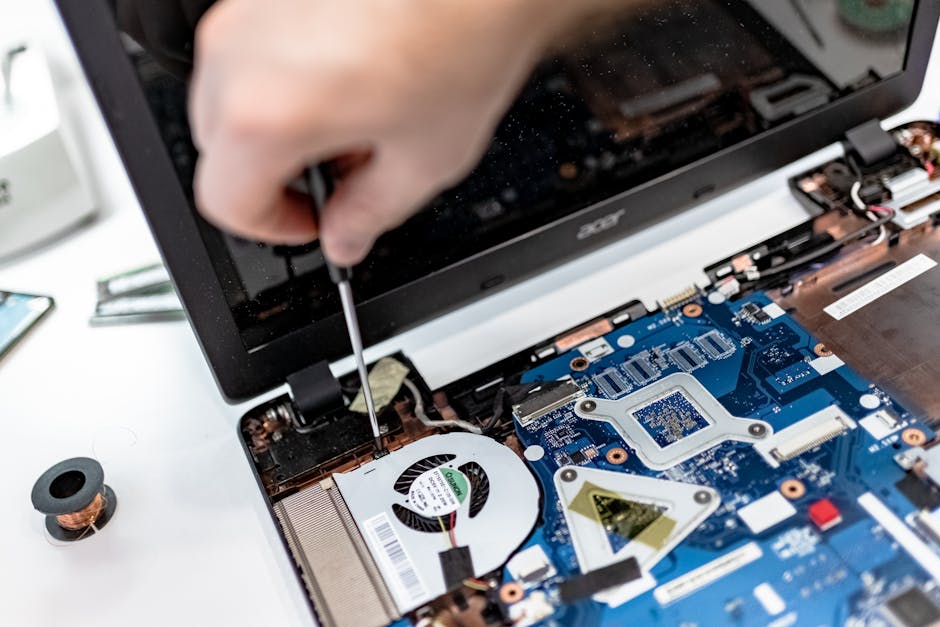
If memory and disk tests show errors that cannot be fixed, consider replacing the failing component. Persistent kernel security check failure after software fixes typically points to hardware issues: RAM sticks, SSD/HDD, or motherboard problems.
FAQ
Q: Will reinstalling Windows fix the kernel security check failure?
A: Yes, a clean reinstall usually fixes software-caused BSODs, but if hardware is defective the problem will persist. Back up data before reinstalling.
Q: Can antivirus software cause this error?
A: Some low-level security drivers (antivirus, virtualization) can conflict with kernel components. Try disabling or uninstalling third-party security software temporarily to test.
Q: How do I read the minidump file to find the culprit?
A: Minidump files are saved in C:WindowsMinidump. Use Windows Debugging Tools (WinDbg) or BlueScreenView to analyze the dump and identify the driver or module causing the crash.
Q: Is this error dangerous for my data?
A: The error itself doesn’t delete files, but repeated crashes and disk corruption can risk data integrity. Back up important files immediately if you experience frequent BSODs.
Conclusion
Resolving a kernel security check failure on Windows 11 usually starts with updates, driver checks, and system scans (SFC/DISM), followed by memory and disk tests if needed. Work methodically from simple software fixes to hardware diagnostics. If you back up your data and use the steps above, you can identify the root cause and restore a stable system.