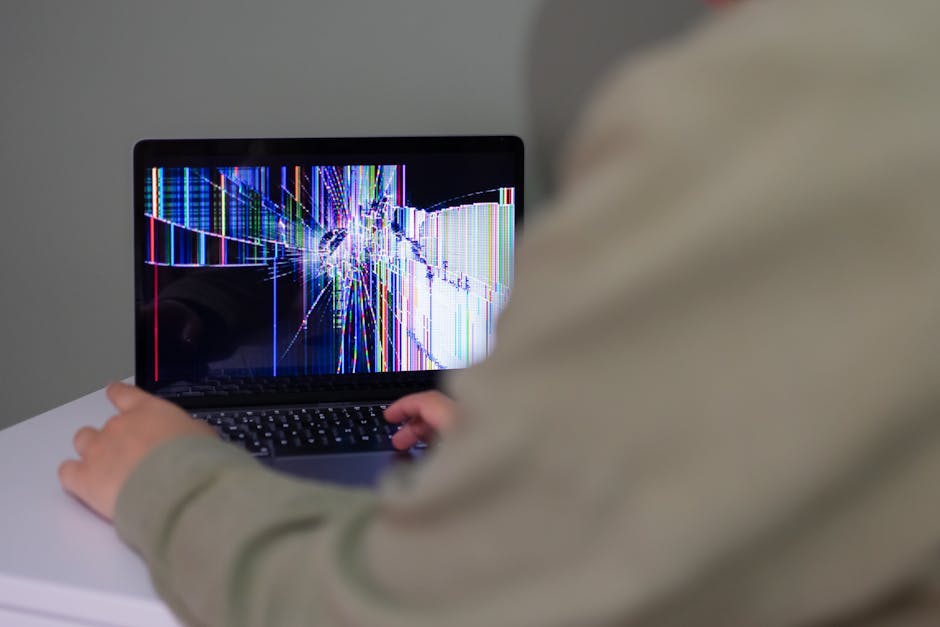
How to Fix “Critical Process Died” Error on Windows 11
The Critical Process Died error is a common Blue Screen of Death (BSOD) on Windows 11 that typically indicates a critical system process terminated unexpectedly. This guide explains how to diagnose and fix the issue with step-by-step instructions, so you can restore stability without unnecessary reinstallations.
What causes the Critical Process Died error?
Understanding common causes helps choose the right fix. Typical triggers include corrupted system files, faulty or outdated drivers, failing hardware (RAM or storage), recent software or Windows updates, and malware that interferes with core processes.
Initial steps: Safe checks and recovery options
Start with non-destructive checks to identify if the problem is temporary or caused by recent changes.
- Boot into Safe Mode: Safe Mode loads minimal drivers and services. Press Settings > System > Recovery > Advanced startup > Restart now. Then choose Troubleshoot > Advanced options > Startup Settings > Restart and select a Safe Mode option.
- Disconnect external devices: Remove USB drives, printers and other peripherals in case a faulty device causes the crash.
- Note recent changes: Uninstall recently installed apps, updates, or drivers that coincide with the first appearance of the error.
System file repairs: SFC and DISM
Corrupted system files are a frequent cause. Run Windows’ built-in tools to repair them.
- Open an elevated Command Prompt (Admin) or Command Prompt from recovery.
- Run System File Checker:
sfc /scannow. This verifies and repairs protected system files. - If SFC reports issues it can’t fix, run DISM to repair the Windows image:
DISM /Online /Cleanup-Image /RestoreHealth - After DISM completes, run
sfc /scannowagain.
Driver and software troubleshooting
Outdated or incompatible drivers are a leading cause of BSODs including Critical Process Died. Follow these steps:
- Update drivers: In Device Manager, look for devices with warning icons. Right-click > Update driver or download the latest drivers from the manufacturer’s website.
- Rollback drivers: If the error started after a driver update, rollback to the previous version in Device Manager > Properties > Driver > Roll Back Driver.
- Uninstall problematic software: Security software, system utilities or low-level tools can interfere with critical processes. Temporarily uninstall them and test stability.
Hardware checks: Memory and disk
Hardware faults — especially RAM and the system drive — can trigger the error. Test both.
- Check RAM: Run Windows Memory Diagnostic (search “Windows Memory Diagnostic” and restart) or use MemTest86 from a bootable USB to perform extended tests.
- Check disk health: Run
chkdsk C: /f /rfrom an elevated Command Prompt. This locates bad sectors and repairs logical errors. If the drive is failing, back up data immediately and replace the drive.
When to use System Restore or Reset
If earlier repairs don’t help, restore your system state to a point before the error began.
- System Restore: Search for “Create a restore point” > System Restore, and pick a restore point dated before the crash started.
- Reset this PC: Settings > System > Recovery > Reset this PC. Choose whether to keep files or remove everything. This reinstalls Windows while optionally retaining personal data.
Advanced troubleshooting and diagnostics
If the error persists, dive deeper to collect diagnostic data and take targeted action.
- Check Event Viewer: Open Event Viewer > Windows Logs > System/System errors around the time of the crash. Look for codes and driver files referenced in error entries.
- Analyze dump files: Windows creates memory dump files in C:WindowsMinidump. Use WinDbg or BlueScreenView to identify the offending driver or module.
- Clean boot: Perform a clean boot (msconfig > Services > Hide Microsoft services > Disable all; Startup > Open Task Manager > disable startup items) to see if a third-party service causes the crash.
Comparison of fixes and when to use them
| Symptom | Recommended action | Reason |
|---|---|---|
| Frequent crashes after driver update | Rollback or reinstall driver | New drivers can be incompatible |
| Crashes with disk errors | Run chkdsk and back up data | Bad sectors or corrupted filesystem |
| Random crashes and memory errors | Run memory diagnostics / replace RAM | Unstable or faulty RAM |
| After recent software install | Uninstall software / clean boot | Third-party software conflicts |
FAQ
Q: Is Critical Process Died a virus?
A: Not usually. It’s generally caused by system file corruption, driver issues, or hardware faults. However, malware that modifies system files could indirectly trigger it, so run a reputable antivirus scan.
Q: Will resetting Windows fix the error?
A: Often yes, because Reset reinstalls Windows and replaces corrupt system files. If a hardware fault or bad driver is the root cause, resetting may not permanently fix the issue.
Q: Can I recover data if Windows won’t boot because of this error?
A: Yes. Use a Windows installation USB or a Linux live USB to boot the machine and copy files to an external drive. Alternatively, remove the drive and connect it to another computer.
Q: How do I know if the problem is RAM?
A: Frequent, random crashes and memory-related errors in Event Viewer or MemTest86 failures indicate RAM problems. Replace sticks one at a time to isolate the faulty module.
Conclusion
Resolving the Critical Process Died error on Windows 11 usually requires a methodical approach: start with Safe Mode, run SFC and DISM, update or rollback drivers, check disk and memory health, and use System Restore or Reset when needed. Collect diagnostic data if the issue persists, and do not ignore hardware warnings—back up your data and replace failing components to avoid data loss. With these steps you can identify the root cause and restore a stable Windows 11 system.