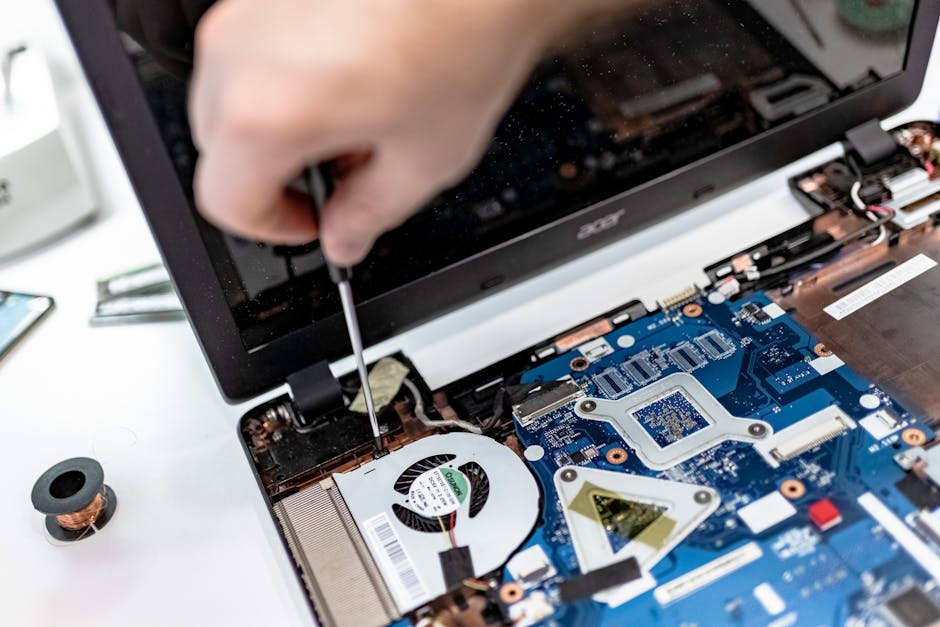
Ultimate Guide to Cooling Your Gaming Laptop: Lower Temps Now
If you’re serious about gaming, cooling your gaming laptop is essential to maintain high FPS, prevent throttling, and extend hardware life. This guide covers practical, safe techniques — from quick fixes you can do today to deeper maintenance and upgrades that deliver longer-term results.
Why cooling your gaming laptop matters
Gaming laptops pack powerful CPUs and GPUs into compact cases, which creates heat. High temperatures cause performance throttling, reduce component lifespan, and can create loud fan noise. Effective cooling keeps frame rates stable, reduces thermal throttling, and improves reliability.
Quick checks and immediate fixes
Before buying anything, run through these fast, low-cost checks that often produce immediate temperature drops.
- Check airflow: Ensure vents are not blocked by a desk edge, soft surfaces, or dust. Raise the rear slightly to improve intake/exhaust.
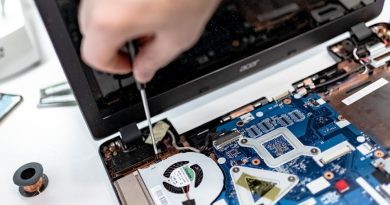
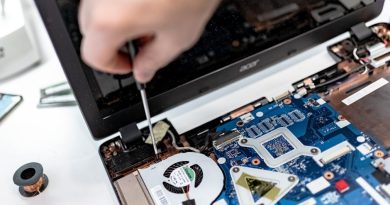
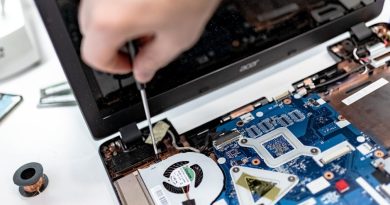
- Clean vents and fans: Use compressed air in short bursts to clear dust from intake/exhaust vents. If comfortable, remove the bottom panel and clean the fans directly.
- Close background apps: Use Task Manager (Windows) or Activity Monitor (macOS) to shut down unneeded apps that stress CPU/GPU.
- Update drivers and BIOS: GPU drivers and firmware updates can include thermal and power optimizations.
Quick software tweaks
- Enable power-saving or balanced modes when not gaming.
- Use frame-rate caps (V-Sync or in-game FPS limits) to reduce continuous high GPU load.
- Set custom fan curves if your laptop supports it via OEM utilities (e.g., ASUS Armoury Crate, MSI Center).
Hardware improvements that make a difference
For persistent heat issues, consider hardware-level interventions. These range from accessible upgrades to more advanced modifications.
Replace thermal paste
Stock thermal paste can dry out over time. Replacing it with a high-quality thermal compound improves heat transfer from CPU/GPU to the heat pipes and can lower temps by several degrees. This requires partial disassembly and careful application.
Upgrade internal thermal pads (if applicable)
Some laptops use thermal pads on VRMs and memory modules. Replacing degraded pads with correct-thickness high-quality pads can improve cooling. Check guides for your specific model.
Improve chassis airflow
Modest modifications like adding rubber feet to increase gap under the laptop or re-routing cables to avoid obstructing vents can help. Advanced users sometimes replace or modify fans — proceed only if you’re confident and have model-specific guidance.
External cooling: Cooling pads and stands
External cooling accessories are the easiest upgrades to buy and use. A good cooling pad or stand improves airflow and reduces intake temperatures.
- Passive stands: Elevate the laptop and rely on natural convection. No noise, low cost.
- Active cooling pads: Have built-in fans to push or pull air. Look for pads with adjustable fan speed and good airflow alignment with your laptop vents.
- Lap-friendly options: If you game on a couch or bed, choose designs that prevent intake blocking and prioritize stable airflow.
Monitoring tools and benchmarks
To understand your laptop’s thermal behavior, monitor temperatures, clock speeds, and fan RPMs during gaming sessions.
- Monitoring apps: HWMonitor, HWiNFO, MSI Afterburner, and OEM tools provide real-time temps and voltage readings.
- Stress testing: Use tools like FurMark or 3DMark to reproduce gaming loads and measure peak temps and throttling behavior.
- Record results: Test before and after each change to quantify improvements.
Table: Cooling methods at a glance
| Method | Effectiveness | Cost | Difficulty |
|---|---|---|---|
| Cleaning vents & fans | Moderate | Low | Easy |
| Cooling pad / stand | Low–Moderate | Low–Medium | Easy |
| Replace thermal paste | High | Low–Medium | Moderate |
| Thermal pad replacement | Moderate | Low–Medium | Moderate |
| Fan replacement / mod | Moderate–High | Medium | High |
| Undervolting / power limits | Moderate | Free | Moderate |
Undervolting, repasting, and other advanced steps
For enthusiasts, undervolting the CPU/GPU or applying a careful repaste can significantly reduce heat without losing much performance.
- Undervolting: Reduce voltage via BIOS or tools (e.g., ThrottleStop, Intel XTU). Lower voltage lowers heat; stability testing is critical.
- Repasting best practices: Use a small pea-sized amount for CPUs, spread thinly on GPUs as appropriate. Avoid excess paste and follow teardown guides for your model.
- Warranty considerations: Opening the chassis may void warranty — check terms and proceed cautiously.
FAQ
How hot is too hot for a gaming laptop?
CPUs often operate safely up to 90–100°C, but sustained temps above 85–90°C may cause throttling. GPUs have similar thresholds. Ideally, aim for CPU temps under 85°C during heavy gaming.
Can I permanently damage components by overheating?
Yes—running components at very high temperatures over long periods can shorten their lifespan. Thermal throttling is a protective measure, but repeated thermal stress is harmful.
Is a cooling pad worth it?
Yes, when paired with proper airflow, a quality cooling pad can lower intake temps and reduce fan workload. Results vary by model and laptop design.
How often should I clean my laptop?
Every 6–12 months is a good rule for regular users; more frequently if you’re in a dusty environment or use your laptop on soft surfaces.
Will undervolting affect performance?
Proper undervolting often reduces heat with minimal performance loss. The key is stability testing; aggressive undervolt settings can cause crashes.
Conclusion
Cooling your gaming laptop requires a mix of routine maintenance, smart software settings, and targeted hardware steps. Start with simple fixes like cleaning, closing background tasks, and using a cooling pad. If higher performance or lower temps are needed, move to thermal paste replacement, thermal pad upgrades, or controlled undervolting. Track temperatures before and after each change to measure impact and keep your system performing reliably for longer.