How to Repair “DPC Watchdog Violation” Blue Screen on Windows 11
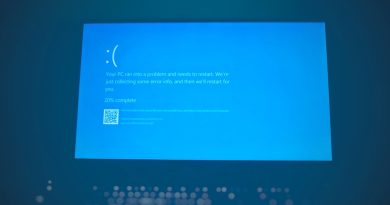
Encountering the “DPC Watchdog Violation” blue screen error on Windows 11 can be a distressing experience, disrupting your workflow and causing potential data loss. This error is often related to hardware issues, outdated drivers, or software conflicts. Fortunately, there are several effective methods to address and resolve this issue, allowing your system to return to its optimal performance.
Understanding the DPC Watchdog Violation
The DPC Watchdog Violation error is a critical stop code that occurs when the system’s watchdog timer detects a Deferred Procedure Call (DPC) running for too long. This can result from issues with device drivers, hardware compatibility, or system files.
Step-by-Step Solutions to Fix the Error
1. Update Device Drivers
Outdated or corrupt drivers are a common cause of this error. Follow these steps to update your drivers:
- Press Windows + X and select Device Manager.
- Expand the categories and locate the device with outdated drivers.
- Right-click the device and select Update driver.
- Choose Search automatically for drivers to allow Windows to find the latest version.
2. Check for Software Conflicts
Software conflicts, particularly from recently installed applications, can trigger this error. To troubleshoot, consider performing a clean boot:
- Press Windows + R, type msconfig, and hit Enter.
- In the System Configuration window, navigate to the Services tab.
- Check Hide all Microsoft services and click Disable all.
- Go to the Startup tab and click Open Task Manager.
- Disable all startup items and restart your computer.
3. Inspect Hardware Components
Faulty hardware can also cause the DPC Watchdog Violation. Ensure all components are properly connected and functioning:
- Check for loose connections or damaged cables.
- Run a memory diagnostic test by typing mdsched.exe in the Run dialog.
- Test your SSD for errors using tools like CrystalDiskInfo.
4. Update Windows
Keeping your operating system updated is crucial for stability and security:
- Go to Settings > Update & Security.
- Click Check for updates and install any available updates.
5. Perform a System Restore
If the error persists, a system restore might resolve the issue by reverting your system to a previous state:
- Search for System Restore in the Start menu and select Create a restore point.
- Click System Restore and follow the prompts to choose a restore point.
By following these steps, you can effectively troubleshoot and resolve the DPC Watchdog Violation error on your Windows 11 system, ensuring a smooth and uninterrupted computing experience.