
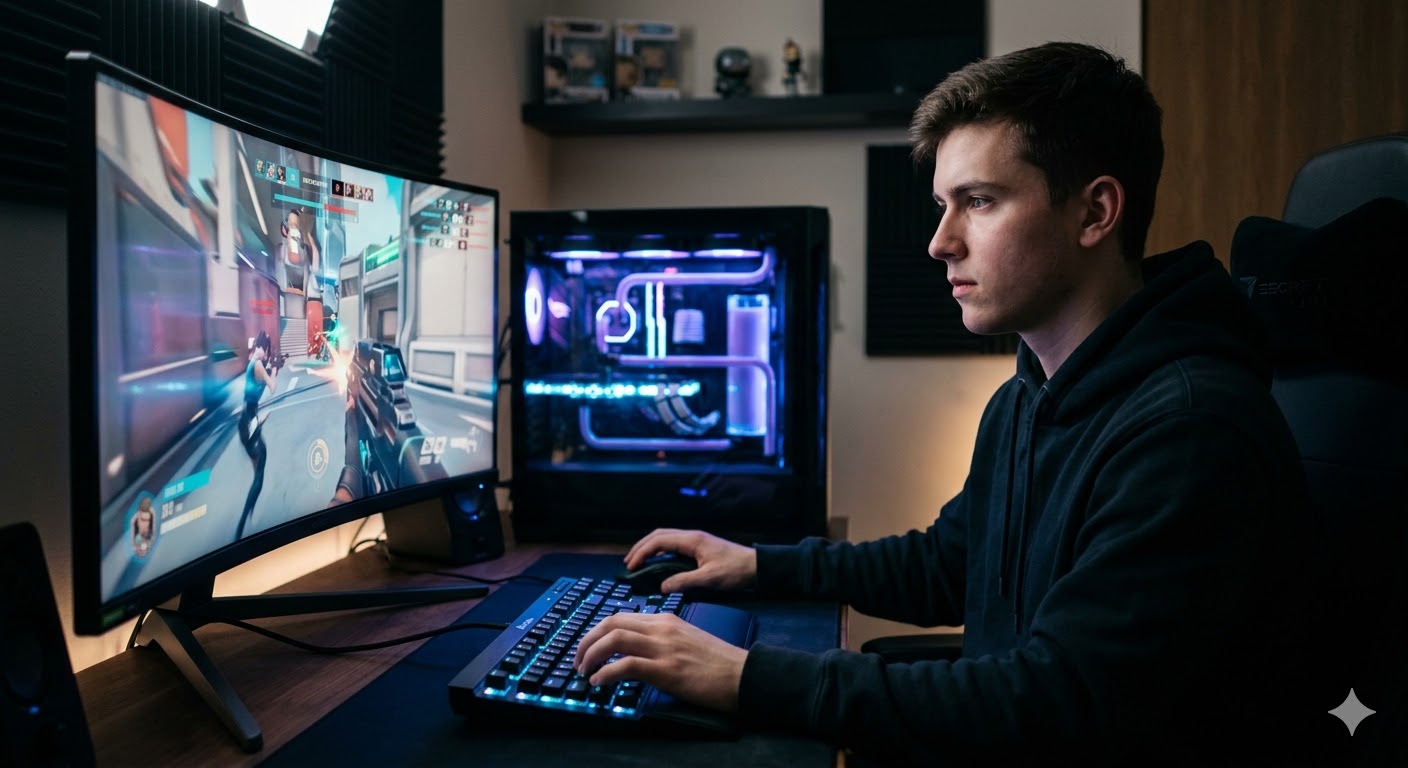
How to Speed Up Windows 11 for High-End Gaming
Windows 11, with its sleek design and powerful new features, has become a popular choice among gamers who crave a superior high-end gaming experience. However, to fully exploit its capabilities, certain optimizations are necessary. If you are looking to enhance your gaming performance, this guide will walk you through a series of steps to help you speed up Windows 11 for high-end gaming.
Optimize Your System Settings
1. Enable Game Mode
Windows 11 comes with a built-in feature called Game Mode, which optimizes your system resources for gaming. Enabling it can significantly improve your gaming performance.
- Press Windows + I to open Settings.
- Navigate to Gaming > Game Mode.
- Toggle the Game Mode switch to On.
2. Update Graphics Drivers
Outdated graphics drivers can hinder your gaming performance. Ensure that your drivers are up-to-date to get the best out of your GPU.
- Open Device Manager by right-clicking the Start button.
- Expand the Display adapters section.
- Right-click on your graphics card and select Update driver.
Adjust Visual Effects
1. Modify Performance Options
Windows 11 provides several visual effects that, while appealing, can consume valuable system resources. Adjusting these can help improve performance.
- Open Control Panel and select System and Security.
- Click on System and then select Advanced system settings.
- Under the Advanced tab, click Settings in the Performance section.
- Select Adjust for best performance or customize the settings according to your needs.
2. Disable Startup Programs
Many programs set themselves to launch at startup, which can slow down your system. Disabling unnecessary startup programs can free up resources for gaming.
- Press Ctrl + Shift + Esc to open Task Manager.
- Navigate to the Startup tab.
- Right-click on programs that you do not need at startup and select Disable.
Enhance Network Performance
1. Optimize Network Settings
For online gaming, network performance is crucial. Ensuring your network settings are optimized can reduce lag and improve your gaming experience.
- Open Settings and navigate to Network & Internet.
- Select Status and then click on Network reset for a fresh start.
By following these strategies, you can significantly enhance your gaming experience on Windows 11. Remember, the key is to balance between visual appeal and performance based on your personal preferences and system capabilities.