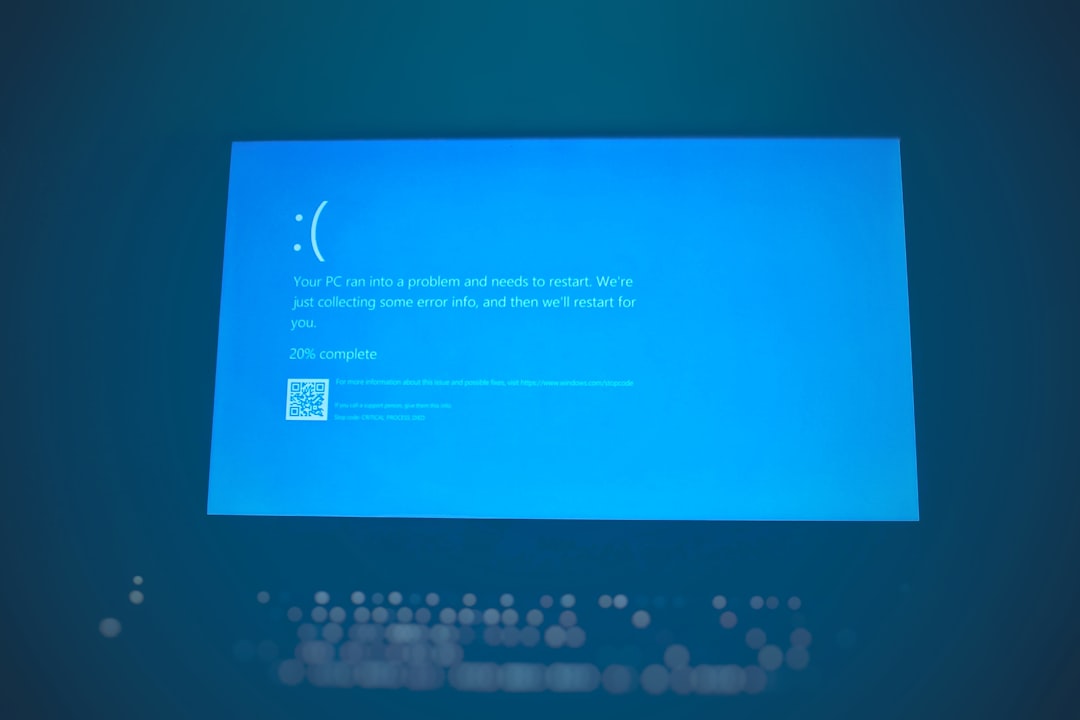
How to Fix Blue Screen Error 0x0000007B on Windows 11
The infamous Blue Screen of Death (BSOD) is a dreaded occurrence for Windows users, often signaling serious issues with hardware or software. One of the more common errors encountered is the 0x0000007B stop code, which typically indicates problems with the boot device. This guide will walk you through the steps to diagnose and resolve this error on Windows 11, ensuring your system returns to normal operation as swiftly as possible.
Understanding the 0x0000007B Error
The error code 0x0000007B usually points to a problem with the system’s ability to access the boot drive. This issue can arise due to several reasons, such as incorrect BIOS settings, corrupted boot records, or incompatible disk drivers. Understanding the root cause is crucial for applying the correct fix.
Steps to Fix the Error
1. Check BIOS Settings
Incorrect configurations in the BIOS are a common cause of this error. Follow these steps to ensure your BIOS settings are correct:
- Restart your computer and enter the BIOS setup. This is usually done by pressing a designated key like F2, F10, or Del during the boot process.
- Navigate to the Boot section and ensure the boot sequence is set correctly, with your main drive as the primary boot device.
- Check the SATA mode setting and switch between AHCI and IDE modes to see if it resolves the issue.
- Save the changes and exit the BIOS.
2. Use Windows Recovery Environment
If the BIOS settings appear to be correct, utilize the Windows Recovery Environment (WinRE) to repair boot issues:
- Boot from a Windows 11 installation media.
- Select Repair your computer at the setup screen.
- Choose Troubleshoot > Advanced options > Startup Repair.
- Follow the on-screen instructions to complete the repair process.
3. Repair Boot Records
If the error persists, manually repair the boot records:
- Access the Command Prompt through the Advanced options in WinRE.
- Execute the following commands one by one, pressing Enter after each:
bootrec /fixmbrbootrec /fixbootbootrec /scanosbootrec /rebuildbcd
- Restart your computer.
4. Update Disk Drivers
Outdated or incompatible disk drivers can also lead to this error. To update your drivers:
- Boot into Safe Mode by pressing Shift + Restart and navigating to Troubleshoot > Advanced options > Startup Settings > Restart, then select Safe Mode.
- Open Device Manager, expand Disk Drives, right-click your drive, and choose Update driver.
- Select Search automatically for updated driver software.
Conclusion
By following these steps, you should be able to resolve the 0x0000007B blue screen error on your Windows 11 machine. Remember, diagnosing the root cause is essential to applying the correct solution. Regular maintenance and updates can prevent such errors from occurring in the future.